
You want to ask Claude about your Search Console data from your phone, inside a scheduled weekly check, or halfway through a client call. A local MCP server can’t do that: it dies the moment your laptop sleeps. This guide shows you how to put a Google Search Console MCP server on Railway, so every Claude surface can reach it, and how to get past the five Google OAuth traps that will otherwise eat your afternoon.
Everything below comes from a build I did on 19 November 2026. The screenshots are from that session, with emails, IDs, secrets and site data blacked out.
The short version
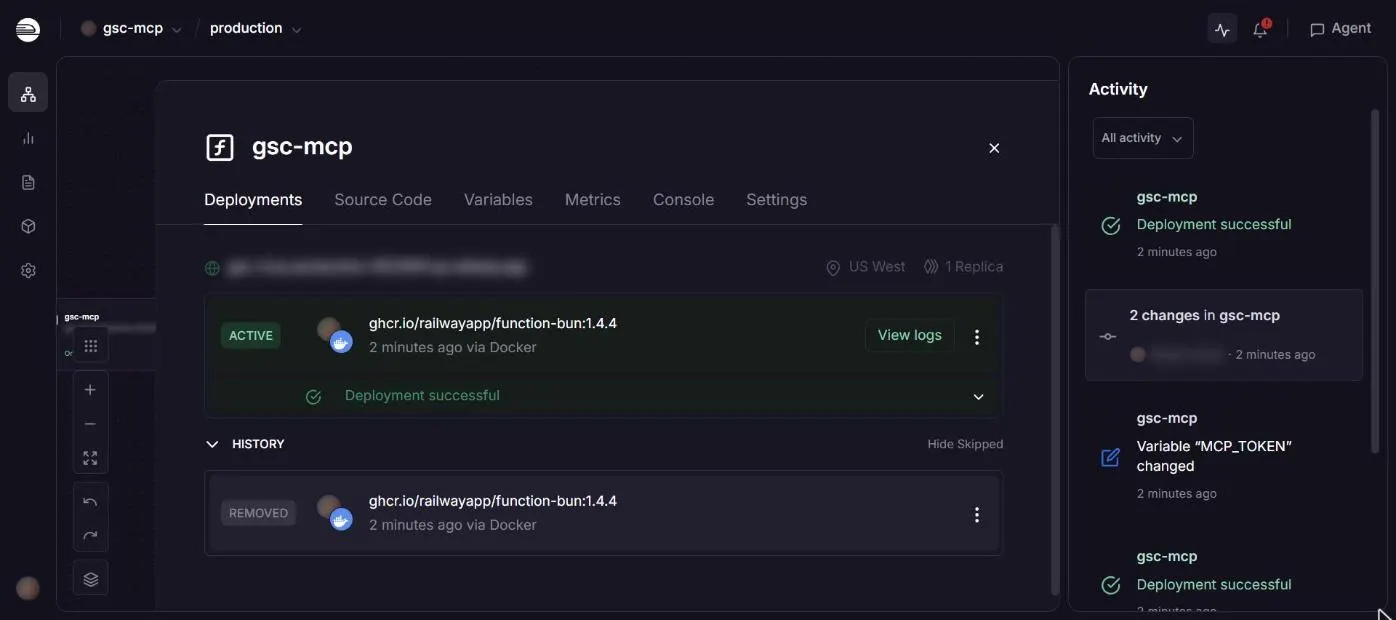
- One TypeScript file, zero dependencies. It runs as a Railway Function, with no GitHub repo, Dockerfile or build step.
- Seven read-only tools built around SEO questions, not raw API calls: quick wins, period comparison, cannibalisation, URL inspection and more.
- Sign in with your own Google account, not a service account, if you manage many properties. Mine returned all 23 properties on the first call, with nothing to add per site.
- Five traps: the Cloud project limit, refresh tokens that die after 7 days, the privacy policy requirement,
up.railway.appbeing impossible to authorise, and an auth code you can’t see. - It costs about 4 US cents a month on Railway and answers most questions in under 1.3 seconds. Measured numbers are below.
- The first run paid for itself. It found 749 hacked spam URLs still collecting impressions months after a malware cleanup, which the Search Console interface never flagged.
Why run the GSC MCP remotely?
A local MCP server lives on your machine. That’s fine for a quick question at your desk. It fails when you want to:
- ask from your phone, away from the laptop
- run a scheduled task, like a Monday-morning “what dropped last week?” check that runs while you sleep
- use the same tools in every Claude app without configuring each one
A remote server gives you one HTTPS endpoint that all of those can call. Railway suits it because a Function deploys a single file in seconds and gives you a public URL straight away.
What the server can do
Each tool answers a question an SEO actually asks, so Claude picks the right one from plain English.
| Tool | The question it answers |
|---|---|
list_properties | Which sites can I query? |
search_performance | Clicks, impressions, CTR and position by query, page, country, device or date, with filters (non-brand, one folder, mobile only). |
quick_wins | Which queries rank in positions 4 to 20 with real impressions, so a small lift brings clicks? |
compare_periods | What gained and what lost, this period against the last one? |
find_cannibalization | Which queries are split across two or more of my pages? |
inspect_url | Is this URL indexed, which canonical did Google pick, and when was it last crawled? |
list_sitemaps | Are my sitemaps being read, and with what errors? |
Every tool uses the webmasters.readonly scope. The server can read everything and change nothing.
Get the code
The whole server is one file you paste into a Railway Function. It is MIT licensed and contains no keys. The source and README live on GitHub at phankamsi/gsc-mcp-railway, or download it directly below. The README has the exact deploy steps, including the OAuth workarounds below.
Five build decisions that will save you time
1. Use a Railway Function, not a repo
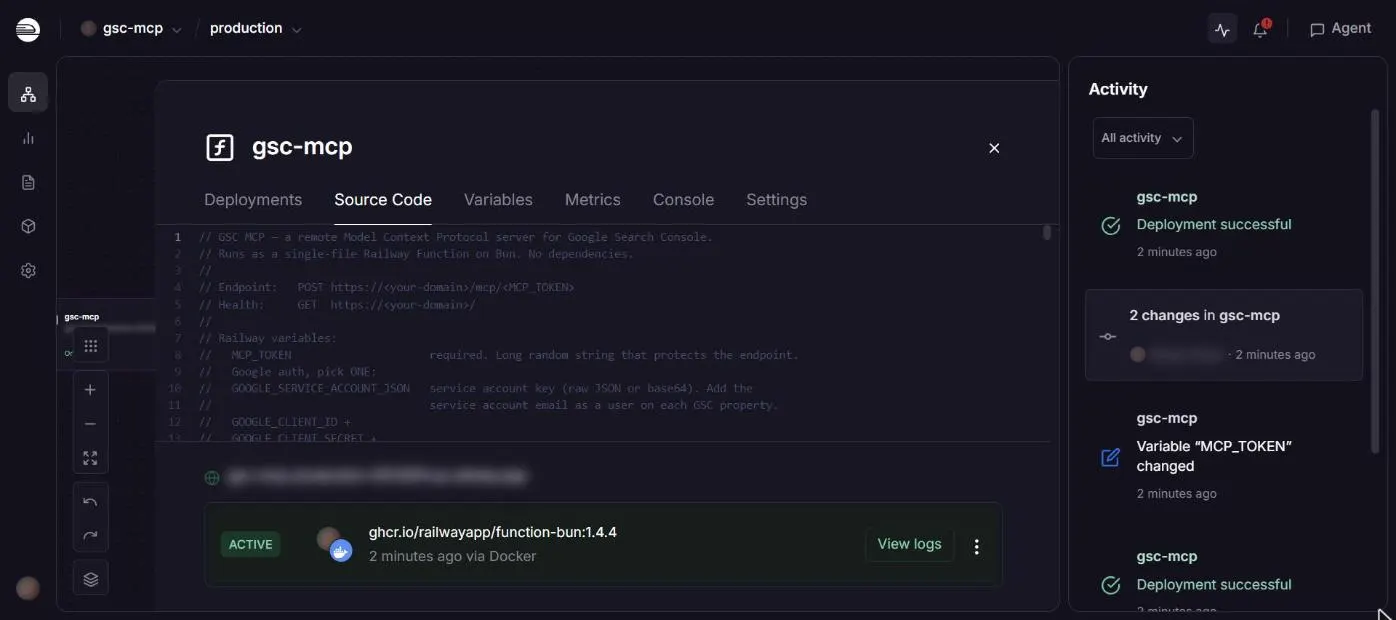
A Railway Function runs one TypeScript file on Bun. You paste the code, Railway installs any imports and serves it. For a small server like this, that removes GitHub, CI and Dockerfiles from the picture. When you change the code, you redeploy in seconds.
2. Skip the MCP SDK for a stateless, read-only server
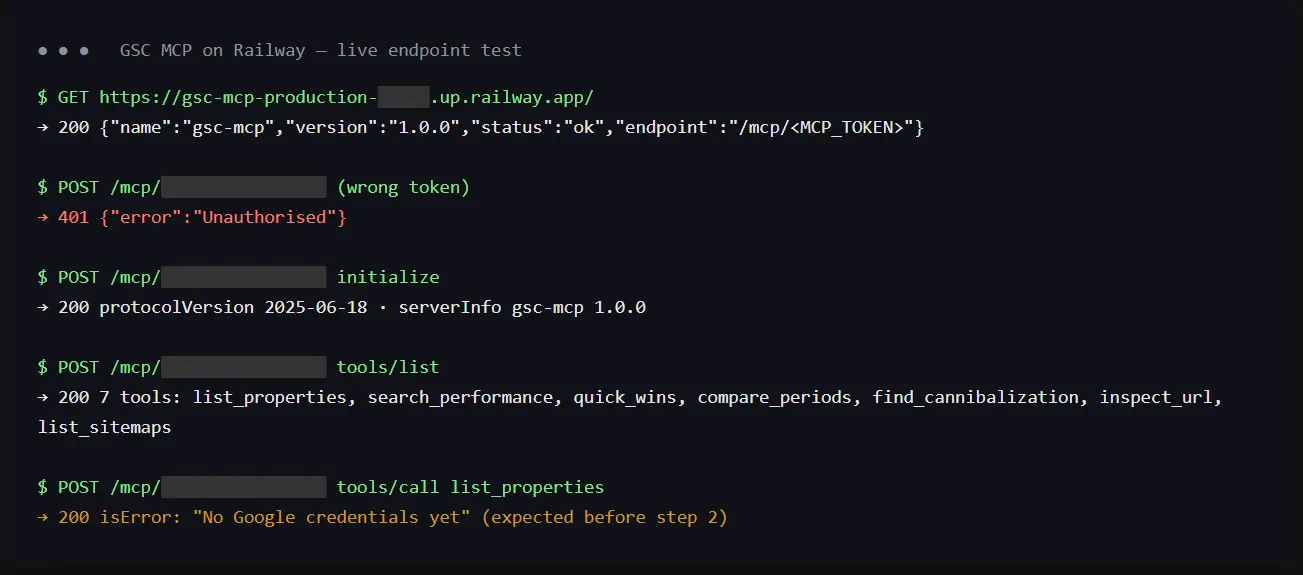
Under the hood, MCP over HTTP is JSON-RPC. A read-only server only needs to answer initialize, tools/list and tools/call, and the spec lets you reply with plain JSON instead of opening a stream. That takes about 40 lines and removes a dependency that could break on Bun:
switch (method) {
  case "initialize":
    return ok({ protocolVersion, capabilities: { tools: {} },
                serverInfo: { name: "gsc-mcp", version: "1.0.0" } });
  case "tools/list":
    return ok({ tools: tools.map(({ name, description, inputSchema }) =>
      ({ name, description, inputSchema, annotations: { readOnlyHint: true } })) });
  case "tools/call":
    const data = await tool.run(params.arguments ?? {});
    return ok({ content: [{ type: "text", text: JSON.stringify(data) }] });
}
3. Put the access token in the URL path
Claude custom connectors expect either a full OAuth server or no auth. Building an OAuth server for a one-person tool is overkill, so the endpoint is /mcp/<long-random-token>. It is compared in constant time, and anything else gets a 401. The server also accepts a normal Authorization: Bearer header for other clients. Treat that URL like a password.
4. Build the reporting lag into every default
Search Console data runs two to three days behind. If “last 28 days” ends today, your newest days are incomplete and every comparison looks like a drop. The server’s default windows end three days ago, so period comparisons are like for like:
function windowFor(days: number, offsetDays = 0) {
  const end = 3 + offsetDays;           // GSC lag
  return { startDate: isoDaysAgo(end + days - 1), endDate: isoDaysAgo(end) };
}
5. Choose OAuth on your account over a service account
A service account is a robot email that you add as a user on every property, one at a time. If you look after a portfolio or client sites, that’s friction every time you take on a new site. OAuth on your own Google account sees whatever you can see. On the first call that meant 23 properties, including client sites, with zero setup per property.
The Google OAuth setup, and the five traps in it
Trap 1: “You’ve reached your project limit”
Older Google Cloud accounts collect idle projects. When Create project refuses, you don’t need to wait for a quota increase. Reuse an idle project you own and enable the Search Console API on it.
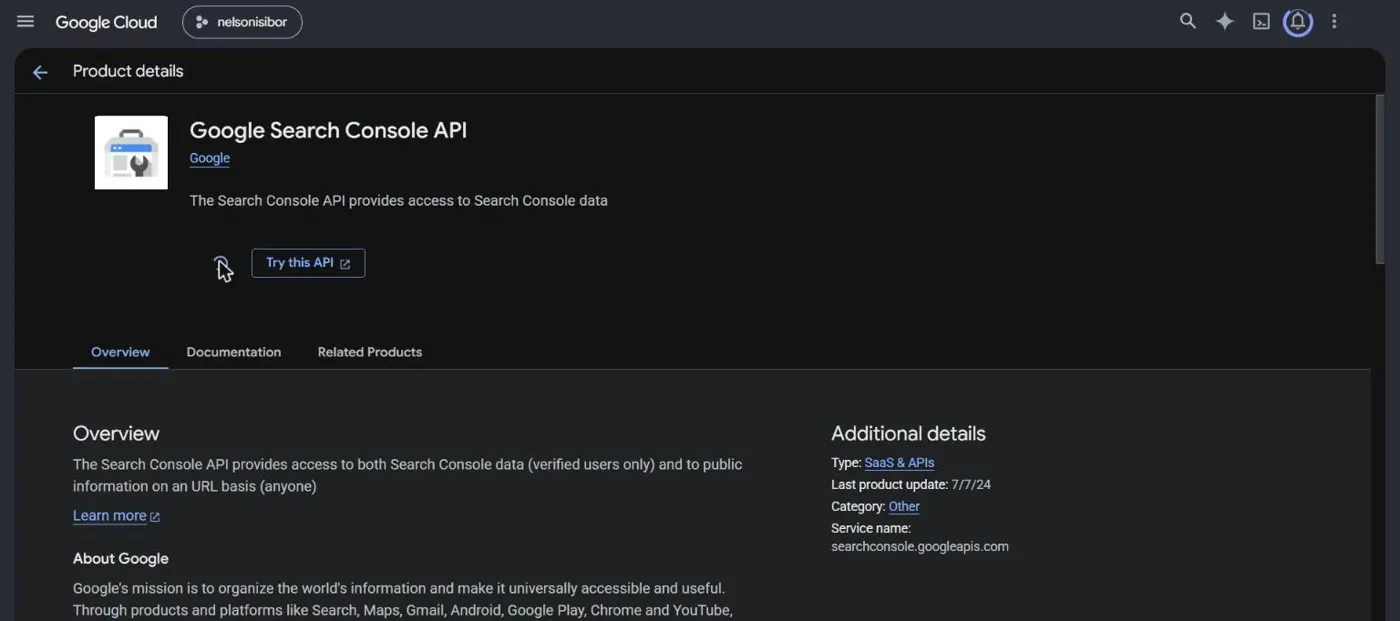
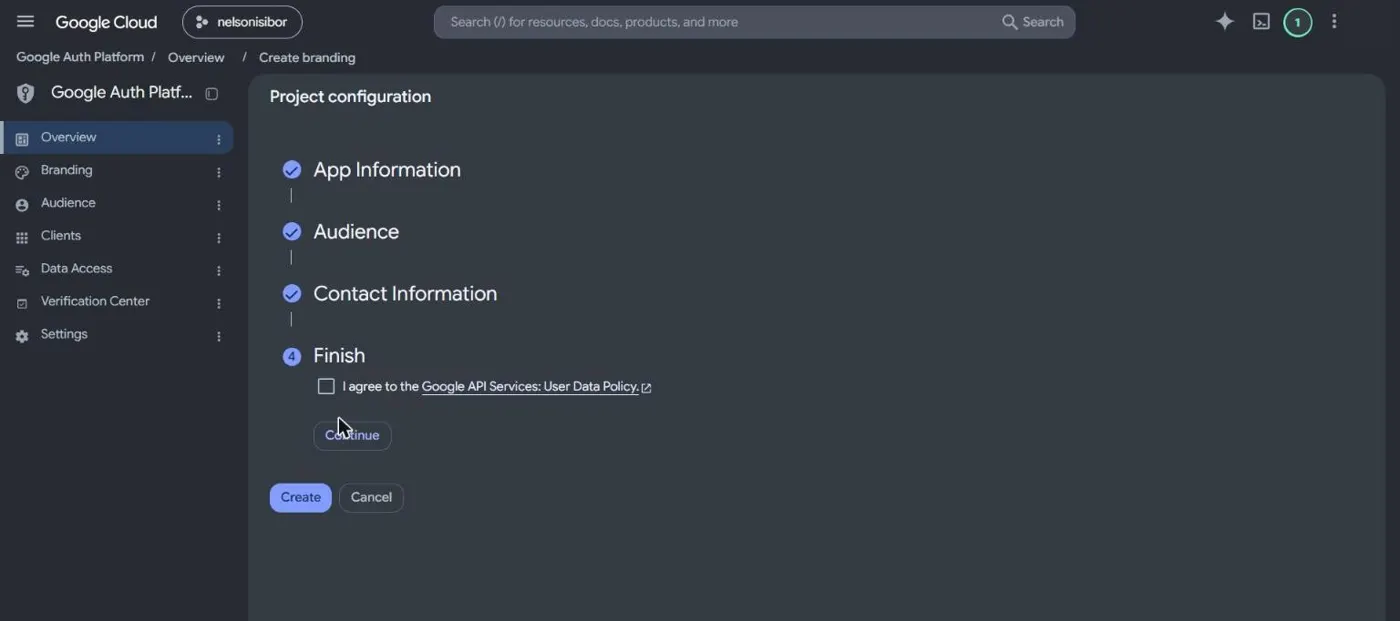
Then open Google Auth Platform, choose External, add your contact email and accept the User Data Policy.
Trap 2: refresh tokens that die after 7 days
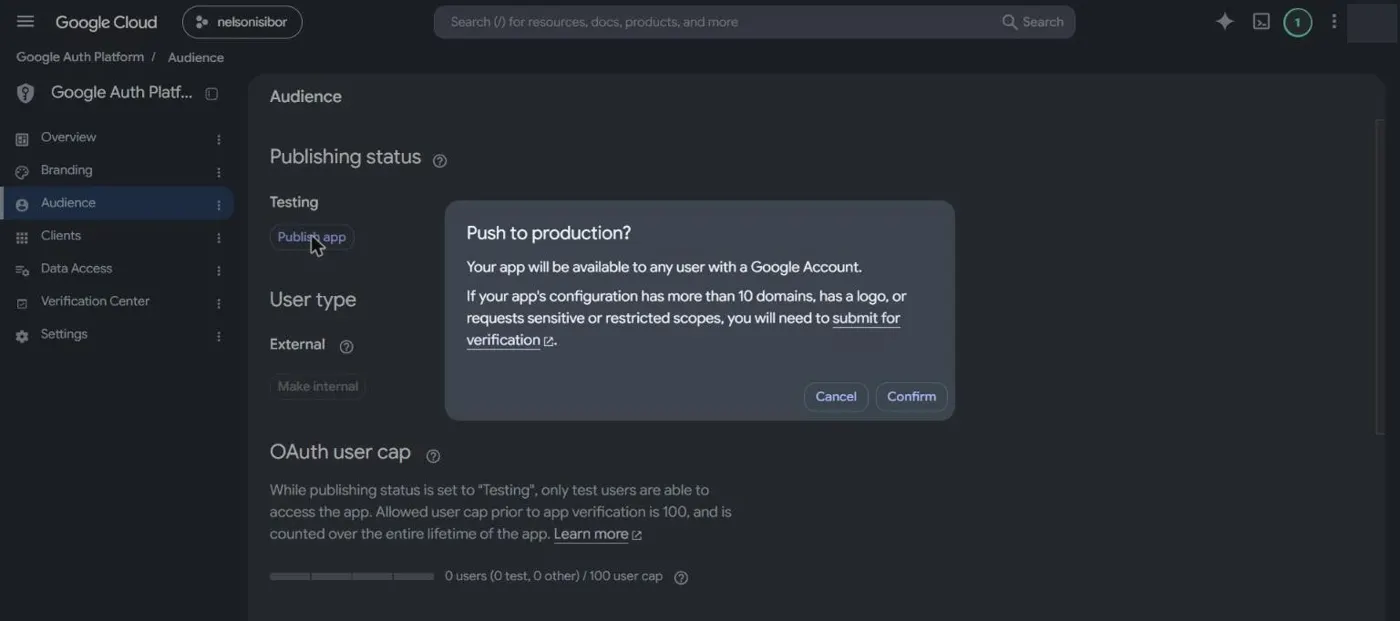
This is the one that silently breaks most DIY connectors. While your OAuth app’s publishing status is Testing, Google expires refresh tokens after seven days. Your connector works all week, then fails, and nothing tells you why. The fix is to push the app to Production.
For a personal tool you don’t need Google’s verification review. An unverified app with a sensitive scope still works for you. You click through an “unverified app” warning once, and the app is capped at 100 users over its lifetime.
Trap 3: Production needs a privacy policy on a domain you control
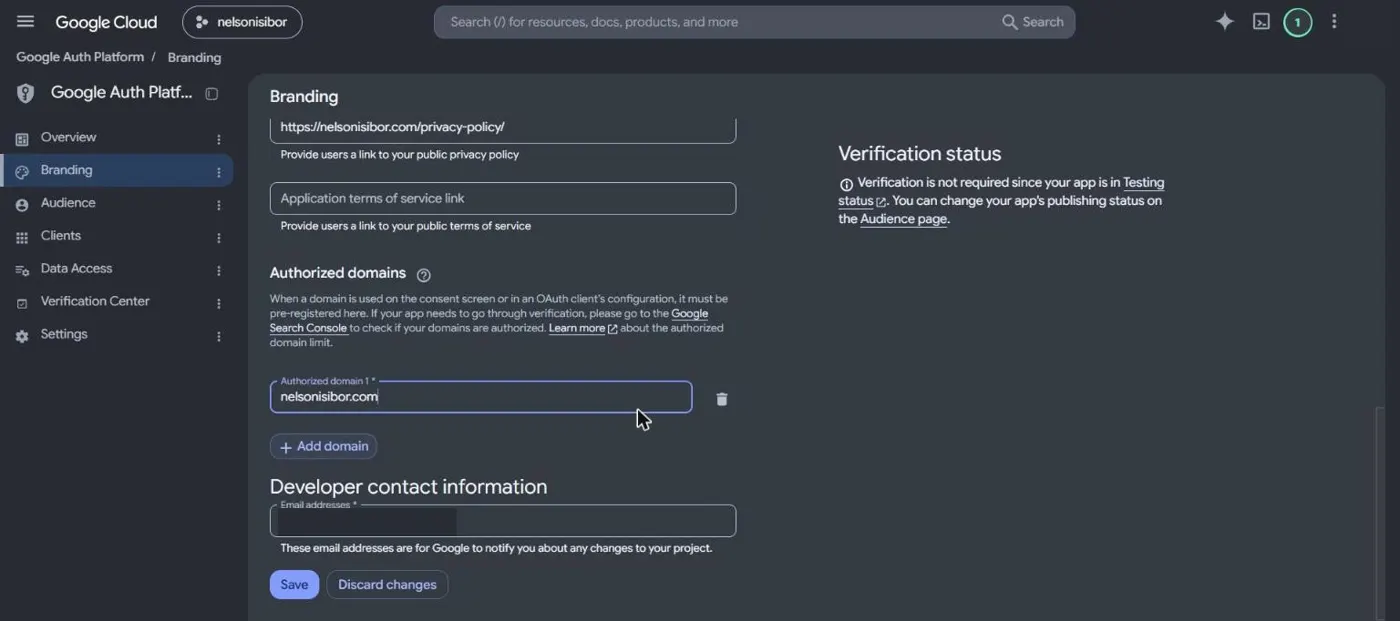
Publish app stays greyed out until the Branding page has a home page, a privacy policy URL and an authorised domain. My site footer’s privacy link was a placeholder, so I wrote a short privacy policy that covers the site and the connector’s read-only access, then authorised the domain.
Trap 4: you can’t authorise up.railway.app
The natural setup is a “Web application” client that redirects back to your Railway URL. It won’t work. up.railway.app is on the Public Suffix List, the same category as github.io, so Google won’t accept it as an authorised domain. You could attach a custom subdomain, but that means DNS changes.
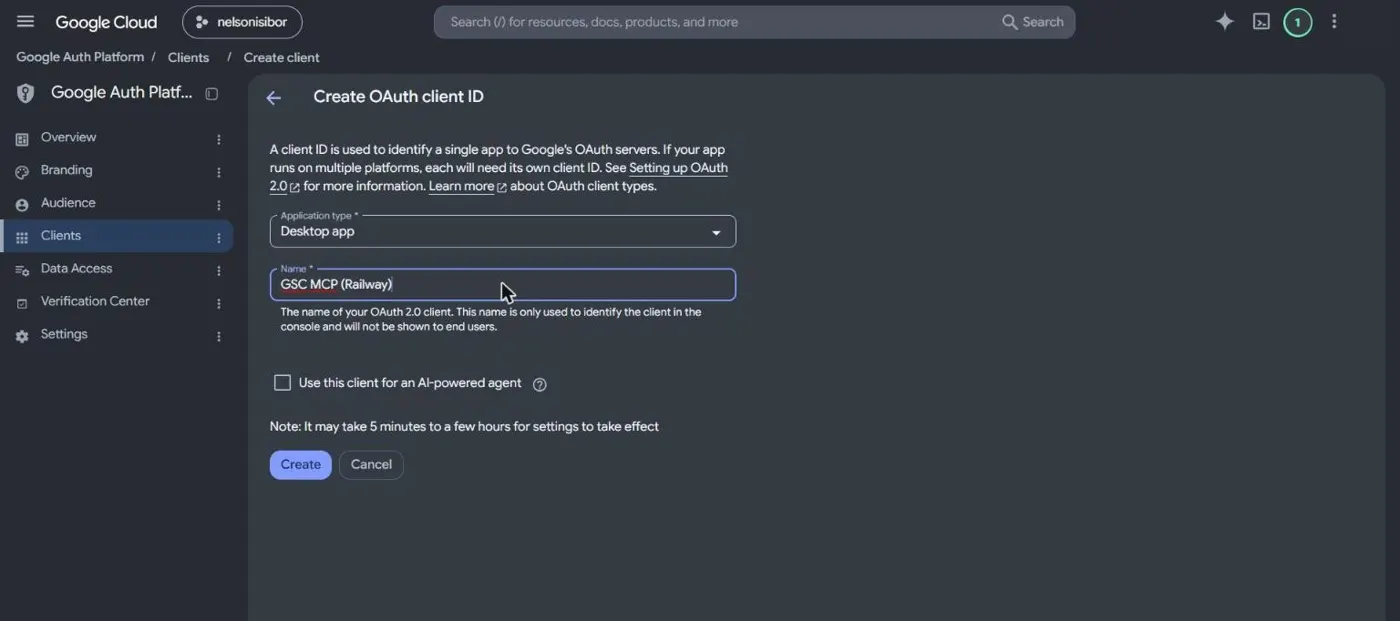
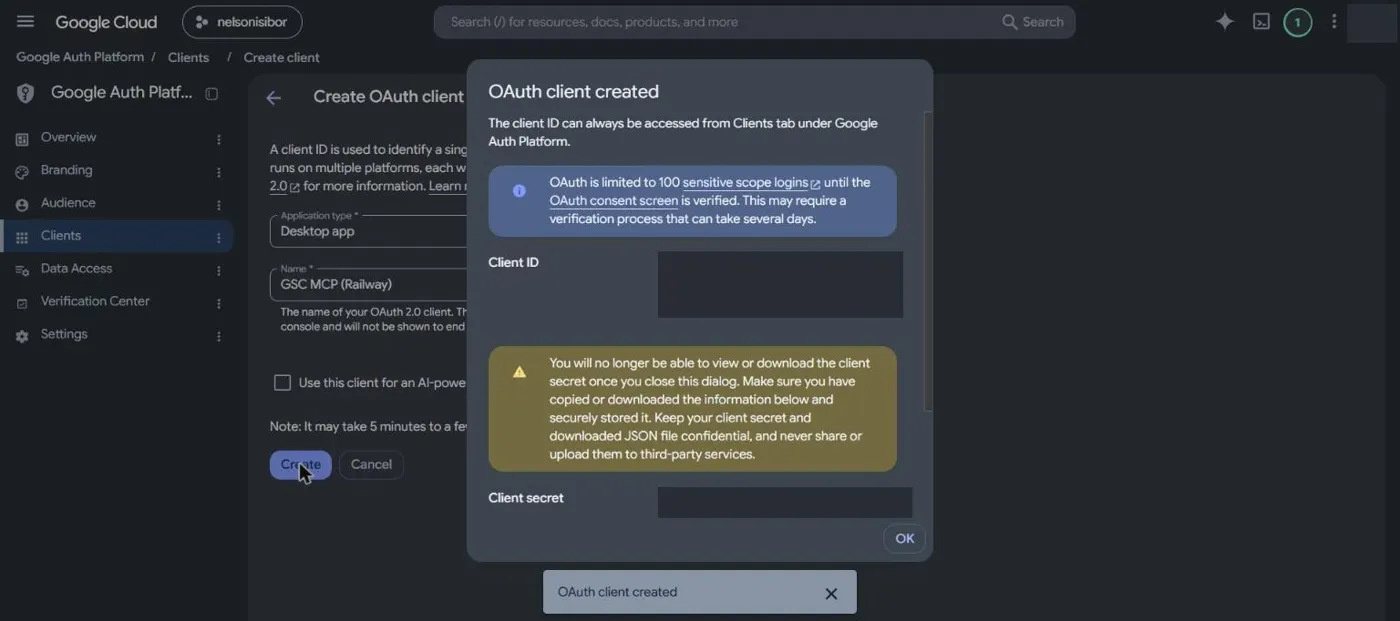
The faster route is a Desktop app client. Desktop clients redirect to a loopback address (http://127.0.0.1:8765), which needs no authorised domain. The client secret stays in Railway variables, and the server does the token exchange.
Trap 5: the auth code lands on a page that won’t load
After you click Allow, Google sends the browser to 127.0.0.1, nothing is listening, and you get “This site can’t be reached”. The authorisation code is sitting in that page’s address bar. Browsers and extensions deliberately hide it from scripts, so you can’t automate the hand-off. Add a small exchange page to the server instead: paste the full 127.0.0.1 address, and it pulls out the code, swaps it for a refresh token and shows you the token once. Save it as GOOGLE_REFRESH_TOKEN in Railway, redeploy, and you’re connected.
Connect it to Claude
Claude now keeps custom connectors under Plugins, not Settings. It takes under a minute:
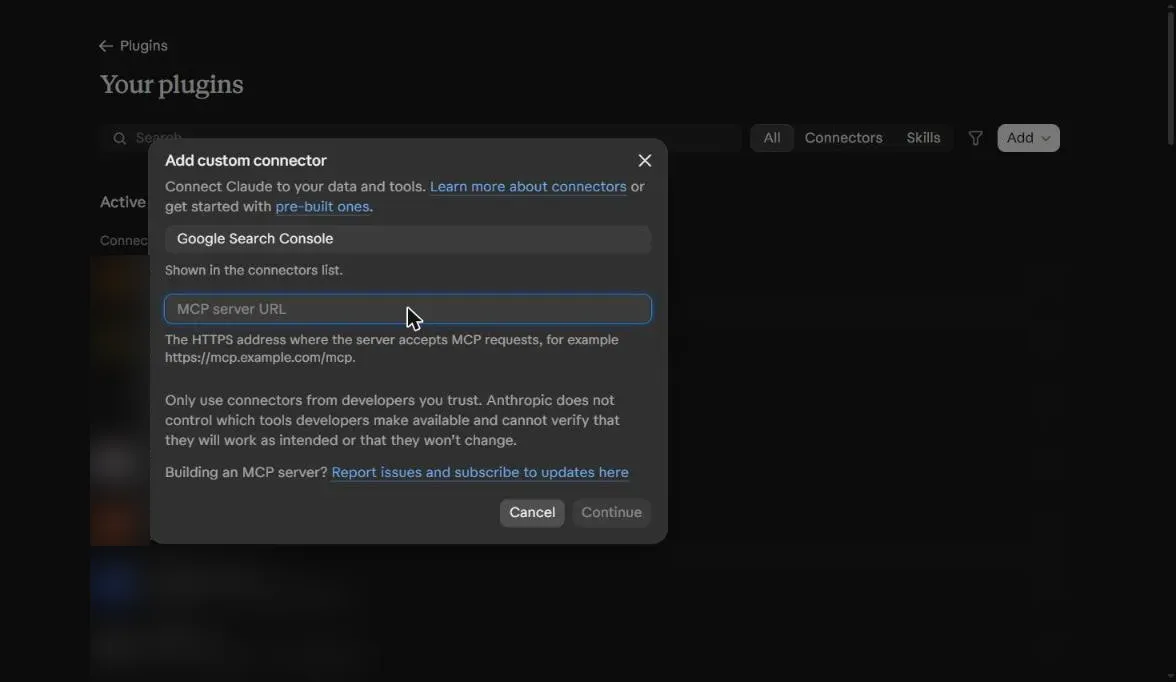
- Open Plugins in the Claude sidebar, then Add, then Add custom connector.
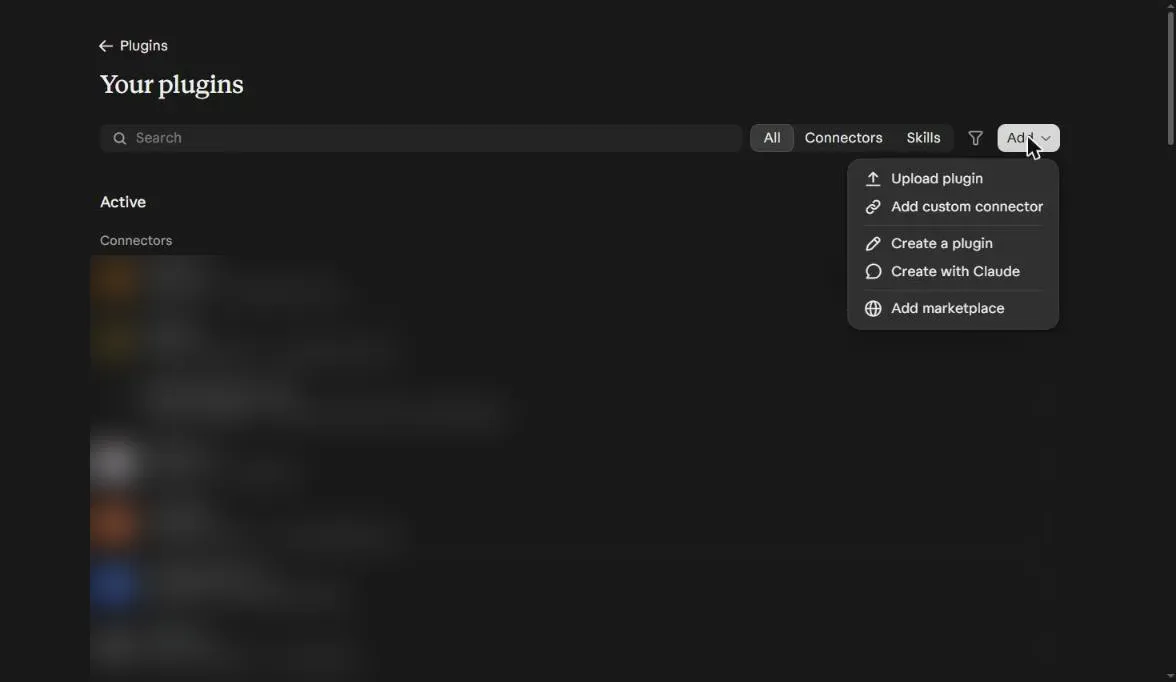
- Name it, then paste
https://your-app.up.railway.app/mcp/<your-token>as the MCP server URL. Leave any OAuth settings empty and click Continue.
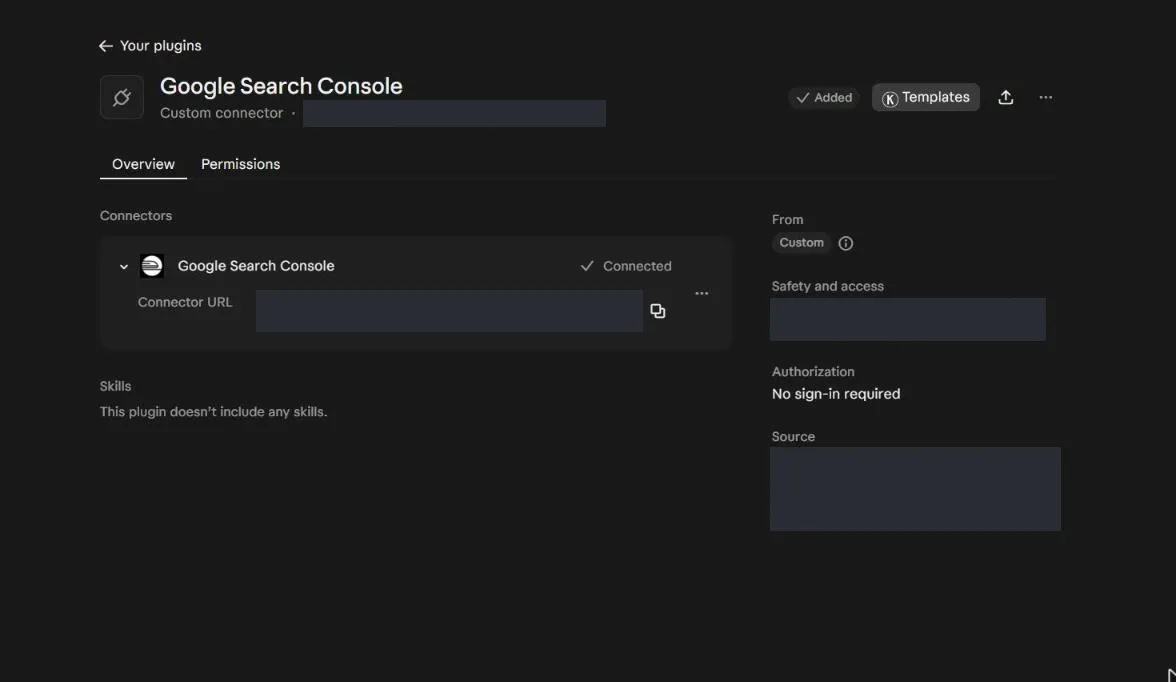
- Check it says Connected and No sign-in required. The token in the URL is the credential, so the URL itself is your secret.
- Turn it on in a chat and ask in plain English: “Quick wins for example.com”, “Compare the last 28 days with the 28 before by page”, “Inspect this URL”.
The first question I asked through it, “top pages on my site”, came back in seconds with the 28-day window already shifted three days to allow for the reporting lag.
What the first run found
The first live call listed 23 properties. Then I pointed the SEO tools at one of my sites, a South African public-services guide.
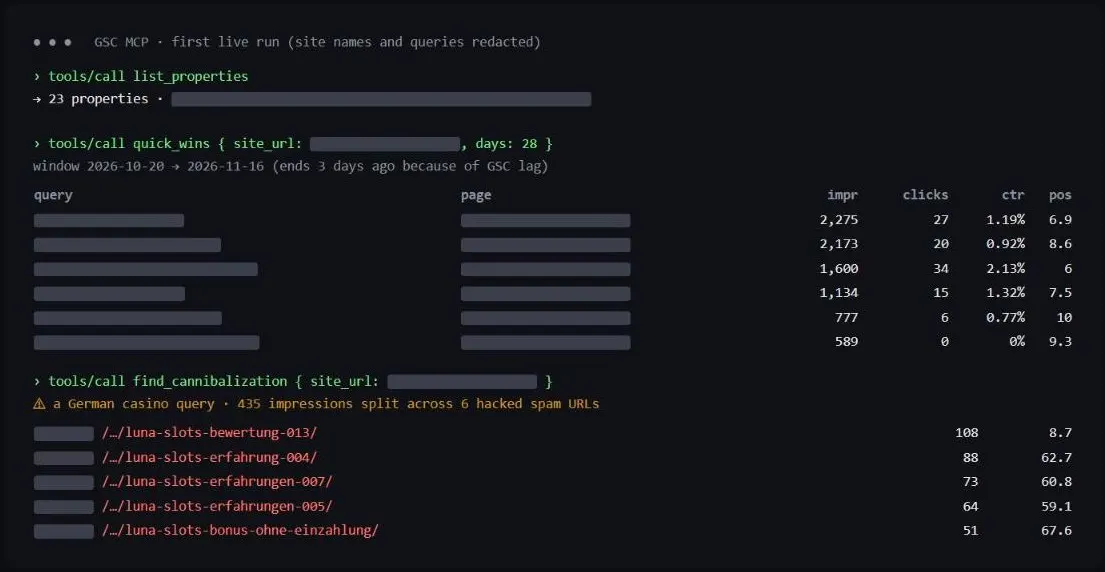
- One page, one cheap fix. Six of the top eight quick wins pointed at the same page: a cluster with more than 8,500 impressions in 28 days, ranking 6 to 9, with CTR between 0% and 2.1%. That’s a title and intro rewrite, not a new page.
- The same page was the biggest loser.
compare_periodsshowed it down 320 clicks as its average position slipped from 8.3 to 9.1. Site-wide clicks fell from 4,605 to 3,997. Two tools, one priority. - A hack I thought was cleaned up wasn’t finished.
find_cannibalizationflagged a German casino query split across six URLs on a site that has nothing to do with gambling. Pulling the thread found 749 spam URLs. That story gets its own section next.
The last of those turned into the most useful finding of the build.
The hack canary: how one tool call found 749 spam URLs
In September, malware on a shared hosting account injected hundreds of German casino posts into several of my WordPress sites. The cleanup removed them and the server now answers those URLs with 410 Gone. I considered it done. Two months later, the first run of this connector said otherwise.
What the data showed
| Window | Spam URLs still in Google’s results | Impressions | Clicks |
|---|---|---|---|
| Last 90 days | 749 | 20,976 | 20 |
| Last 28 days | 284 | 8,191 (4.4% of the site’s 185,429) | 9 |
Only 11 real posts live in the affected folder. The other 749 URLs in it are spam, and Google was still showing 284 of them in the last four weeks. The spam ranks for German casino review terms, so it never shows up in the queries you normally watch, which is exactly why it hid.
The steps, so you can run the same check
- Watch for the tell. Run
find_cannibalizationweekly. A foreign-language query split across URLs with numbered slugs (-003,-007,-013) is never a real content problem. It is generated spam cannibalising itself. - Size it, don’t eyeball it. Pull every page in the affected folder over 90 days with
search_performance(dimensionpage,page_containsset to the folder, row limit 25,000), then subtract your real posts. In WordPress, the REST API lists them by category. Anything left over is spam. - Find out why the spam landed there. On this site the folder was the default WordPress category, renamed. Spam posts created without a category fall into category ID 1 automatically, so one folder took the whole hit. Check which of your categories has ID 1.
- Check the status code from outside. Request a few spam URLs logged out. 410 is the right answer: it tells Google the page is gone on purpose, not missing by accident. Here the 410 was already in place at the server, so the remaining problem was recrawl lag, not the fix.
- Don’t reach for a prefix removal. Search Console’s Removals tool can hide a whole folder, but when real pages share that folder it hides them too. It is also temporary. Let the 410s do the work.
- Record a baseline and check again. I took the figures above on 19 November 2026. I’ll re-run the same query in a few weeks and add the after numbers to this post.
I am not publishing the URL list. You don’t need it, and spam URLs have a way of getting crawled again when people link to them.
What it costs and how fast it is
Measured on the live server on day one. Timings are the median of three calls each, from a browser in Johannesburg to Railway’s US West region, against a site with about 185,000 impressions a month.
| Tool | Median response |
|---|---|
list_properties | 0.38 s |
list_sitemaps | 0.53 s |
search_performance (100 rows) | 0.69 s |
compare_periods | 0.70 s |
quick_wins | 1.19 s |
find_cannibalization | 1.28 s |
inspect_url | 6.68 s |
- Reliability: 53 requests in the first three hours, a p95 response time of 1.13 seconds and zero server errors.
- Resources: average memory 3.5 MB, peak 70 MB, average CPU 0.0002 vCPU.
- Cost: at Railway’s published rates of $10 per GB of memory and $20 per vCPU per month, that is about 4 US cents a month, well inside the $5 of usage included in the Hobby plan. Check current Railway pricing.
- Why it’s faster than the interface:
quick_winsandfind_cannibalizationpull up to 25,000 query and page rows from the API and filter them in about a second. The Search Console interface stops at 1,000 rows per table, so on a larger site you never see the long tail where both quick wins and spam hide. - URL inspection is the slow one, at around 6.7 seconds, because Google runs a live check. Use it for spot checks, not loops.
What I’d do differently, and when not to build this
If I built it again
- Start with a Desktop app OAuth client instead of discovering the public-suffix problem halfway through.
- Push the OAuth app to Production before the first sign-in, so the very first refresh token is a long-lived one.
- Put the privacy policy up first. It takes ten minutes and it is the only thing between you and Production.
- Schedule the canary on day one. A weekly Claude task running
find_cannibalizationandcompare_periodsacross your top properties costs nothing and would have caught the spam weeks earlier.
When a remote GSC MCP is the wrong tool
- You check Search Console occasionally, at your desk. The Search Console interface, or a local MCP on your laptop, is enough. A remote server only pays off when you want answers on your phone, in scheduled tasks or across many properties.
- You already pay for Ahrefs and have Search Console connected there. Ahrefs’ own connector gives Claude Search Console performance data with no server to run. It only sees the properties connected to your Ahrefs projects, though, and its toolset doesn’t include URL Inspection.
- Several people need access under their own Google accounts. This design shares one account’s access through one token. For a team, build a proper per-user OAuth flow.
- You need to change things. It is read-only by design. Submitting sitemaps or requesting removals still happens in Search Console.
Limits worth knowing
- Search Analytics returns up to 25,000 rows per request. The server pages through them, but very large sites will take a few seconds per call.
- URL Inspection has a daily quota per property, so use it for spot checks, not bulk crawling.
- This setup is for one Google account. If several people need their own access, build a proper OAuth flow per user instead of a shared token.
FAQ
Can I run a Google Search Console MCP without a laptop on?
Yes. Hosting the server on Railway gives you an HTTPS endpoint that Claude can reach from any device or from a scheduled task, whether or not your computer is on.
Do I need Google to verify my OAuth app?
Not for personal use. Publish the app to Production so tokens don’t expire, accept the one-time “unverified app” warning, and stay under the 100-user cap.
Why does my Search Console connector stop working after a week?
Your OAuth app is almost certainly still in Testing mode, where Google expires refresh tokens after seven days. Push it to Production and sign in once more.
Want this running on your sites?
If you manage several Search Console properties and want these checks working for you, from weekly quick-win reports to hack canaries and period comparisons inside your reporting, I can set it up for your team. Get in touch and tell me how many properties you look after.