


This guide shows you how to add a subdomain to your Spaceship hosting account. Whether you’re setting up a staging site, starting a blog or separating part of your website, it only takes a few minutes.
What is a subdomain?
A subdomain is a prefix added to your main domain that helps you organise different parts of your website. If your main domain is example.com, a subdomain could be blog.example.com or store.example.com.
How to add a subdomain in Spaceship
1. Sign in to your Spaceship account
- Go to the Spaceship website and log in.
- Click the search icon (magnifying glass) in the top header and open the Hosting Manager app.
2. Open your hosting subscription
- In Hosting Manager, find the hosting plan you want to add the subdomain to.
- Click “+ Add domain”.
- Type the full subdomain. For example, if your main domain is thehungryseo.com and you want a subdomain called store, type store.thehungryseo.com.
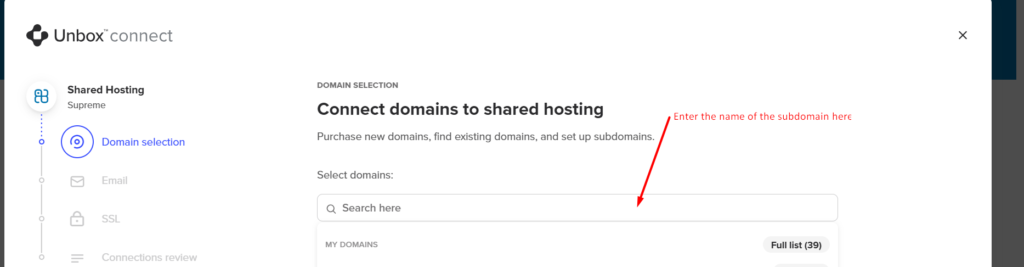
3. Follow the setup prompts
- Spaceship may offer to connect extra services, such as an SSL certificate or a CDN.
- Follow the prompts to set up your subdomain.
- Click “Connect” to apply the changes.
What happens next?
Your subdomain will now be active and connected to your hosting account. Depending on DNS propagation, it can take from a few minutes to a few hours before it loads everywhere.
If something goes wrong
Check Spaceship’s support documentation or contact their customer service. Their live support helped me fix a subdomain redirect problem quickly.
Related guides: