This site ran on WordPress for years. Elementor for the design, Rank Math for SEO, Site Kit for Google, all on shared hosting at Spaceship.
Today it runs on Cloudflare Pages. It’s a set of static files, built from a GitHub repository, served from Cloudflare’s network. I did the move with Claude doing most of the build work, and I took screenshots as we went.
This post covers why I moved, how it was done, what broke, and the numbers before and after. It also covers the part I didn’t expect: after doing this, I don’t think WordPress is dying.
Why I moved
Three reasons.
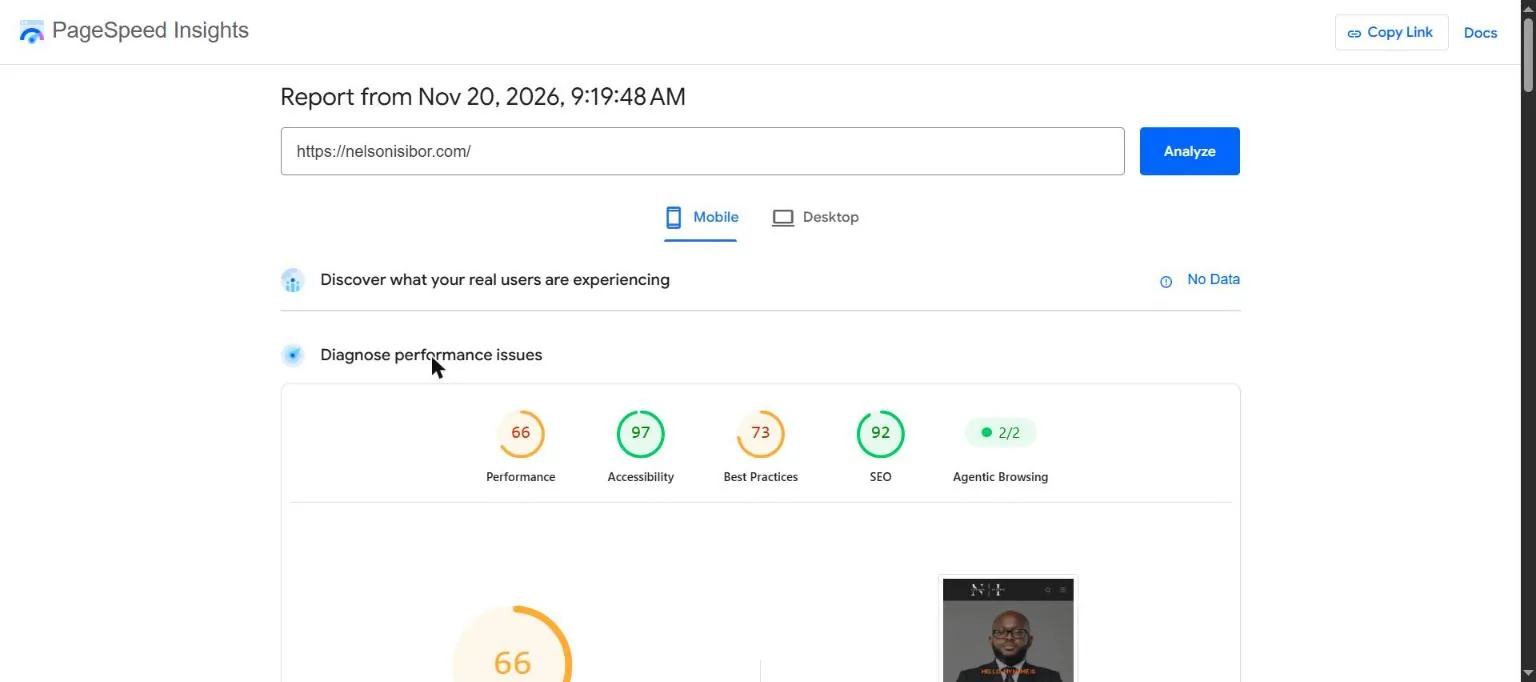
Speed. My own site scored 66 for mobile performance on PageSpeed Insights. For someone who sells SEO, that’s not a good look.
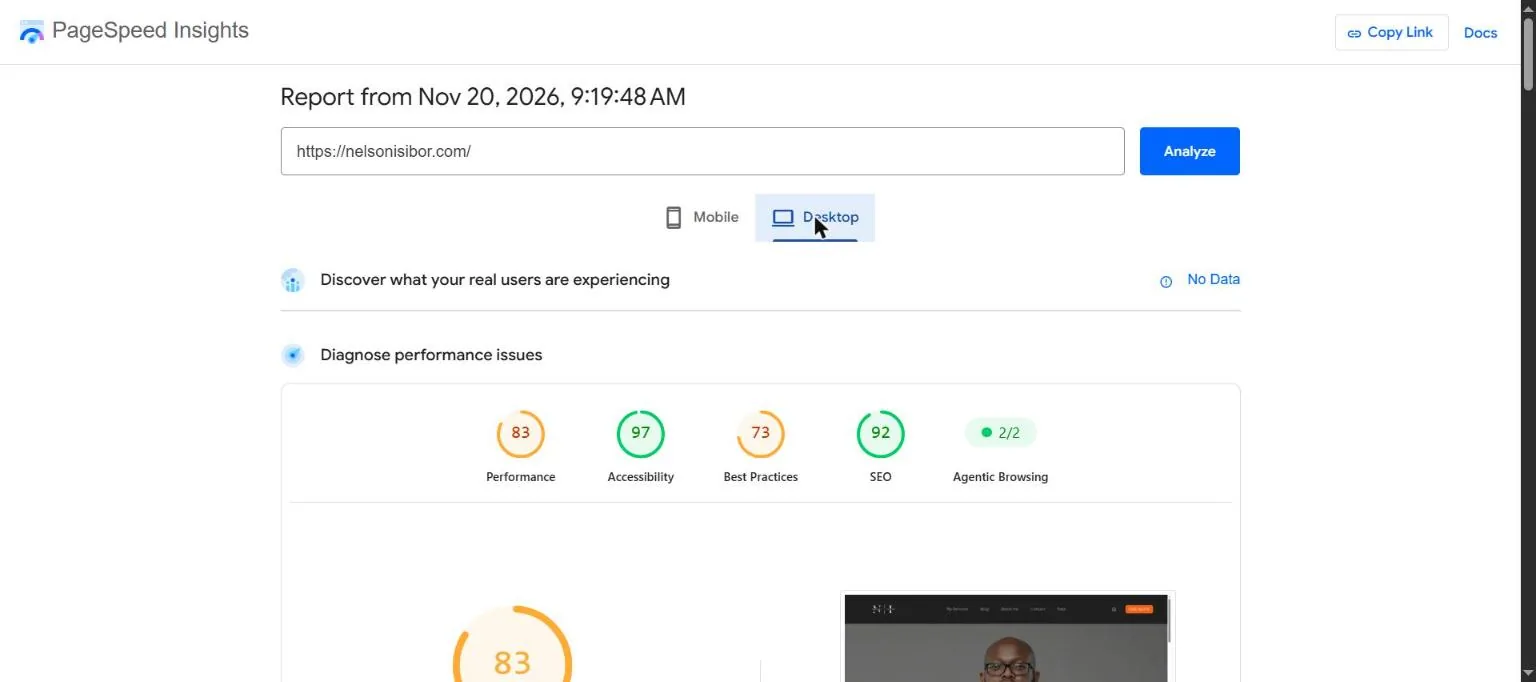
Desktop was better at 83, but best practices sat at 73 on both.
Security. In September, malware spread across the WordPress sites on my shared hosting account. I wrote about it in 68 seconds: how one forgotten website took down 19 of mine. A static site has no database, no PHP and no plugins to exploit. There’s far less to attack.
Control. I wanted a site I could update myself through a simple editor, and that Claude could update by committing to the repository.
The rule: Google shouldn’t notice
The site has posts that rank and pages Google already knows. So the rule for the whole move was simple: no missing pages, no broken URLs, no broken images. Google shouldn’t be able to tell the CMS changed.
In practice that meant:
- Every post and page keeps its exact URL, including the trailing slash.
- Every image keeps its exact path under
/wp-content/uploads/, so old links to images still work. - Category pages, author pages, blog paging, the RSS feed and the Rank Math sitemap URLs all stay where they were.
- Pages that were set to noindex on WordPress stay noindex.
- Page titles and meta descriptions carry over from Rank Math.
- Email keeps working the whole time.
Step 1: Get everything out of WordPress
WordPress has a built-in export under Tools. It gives you one XML file with every post, page and their settings.
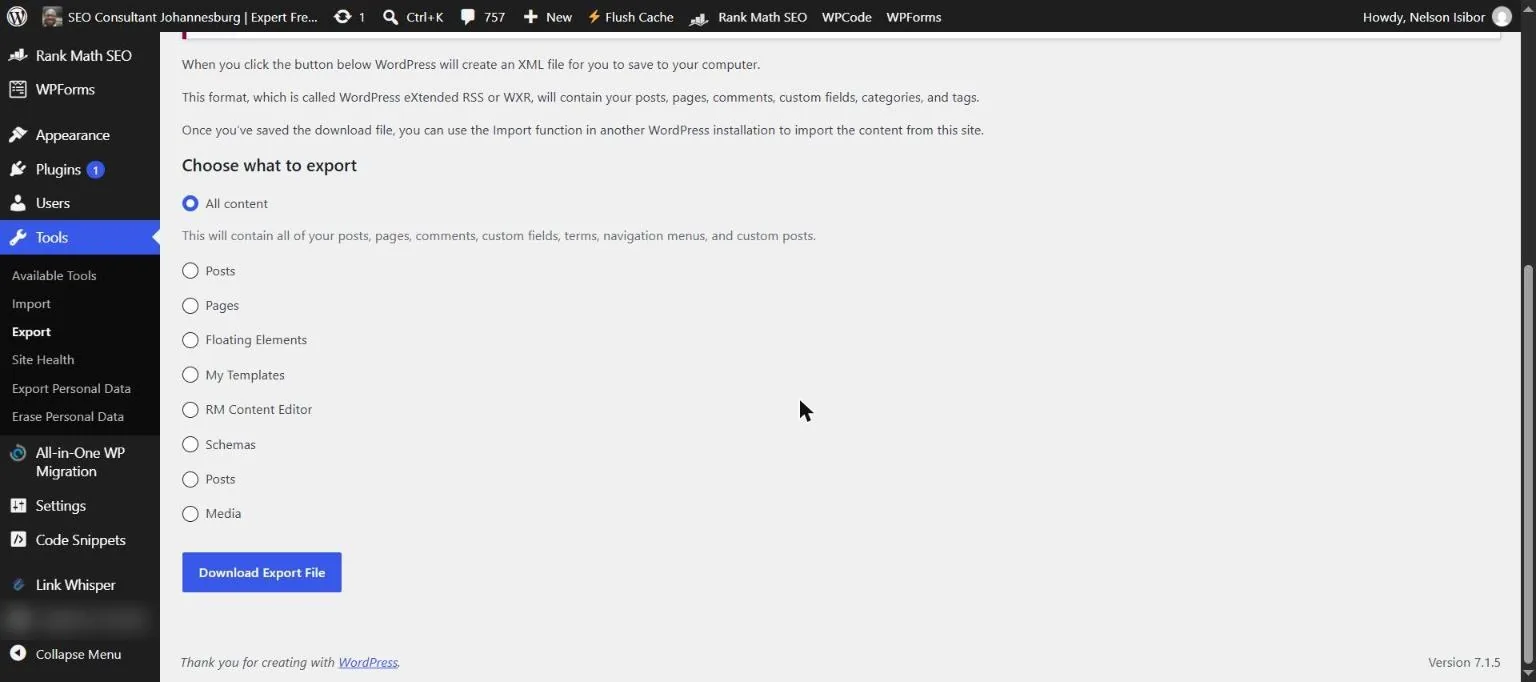
The export doesn’t include images. Those live in the wp-content/uploads folder on the server, so I zipped that folder in cPanel’s File Manager and downloaded it.
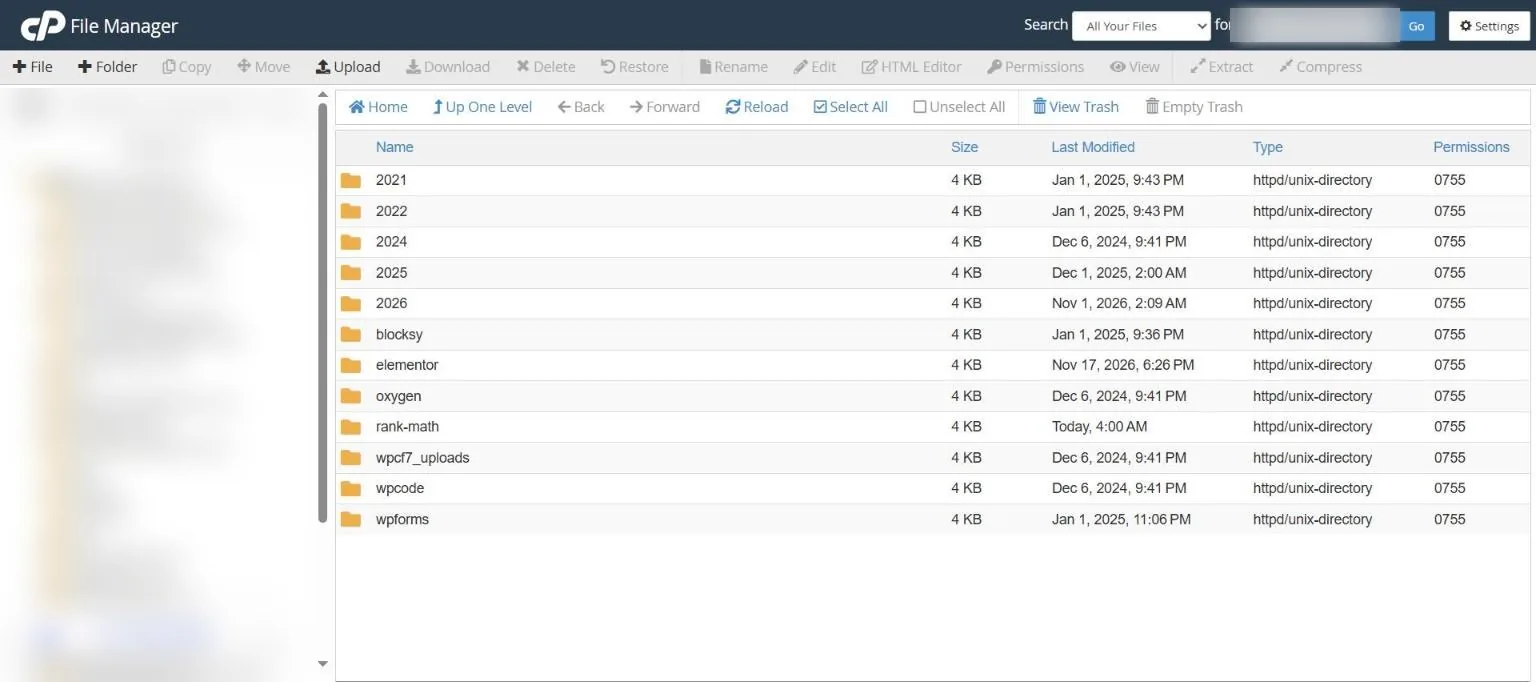
That gave us 44 posts and pages and 921 image files. Before using any of it, the uploads were scanned for scripts or disguised files, given the hack earlier in the year. It came back clean.
Step 2: Rebuild the site as static files
The new site is built with Astro, a framework that turns content files into plain HTML pages.
The old posts were converted into content files, but their bodies were kept as the original HTML from WordPress. Rewriting 44 posts into a new format is how formatting gets lost and links break, so we didn’t.
The images went into the same /wp-content/uploads/ folders they came from. The build reads the resized copies WordPress had already made and uses them, so phones load small images and big screens load big ones.
The new design is mine: black background, white text, nothing extra. Fonts are hosted on the site itself, not loaded from Google.
Step 3: Put it on Cloudflare Pages
The code lives in a private GitHub repository. Cloudflare Pages is connected to it. Every time something is committed, Cloudflare builds the site and publishes it, usually in under a minute.
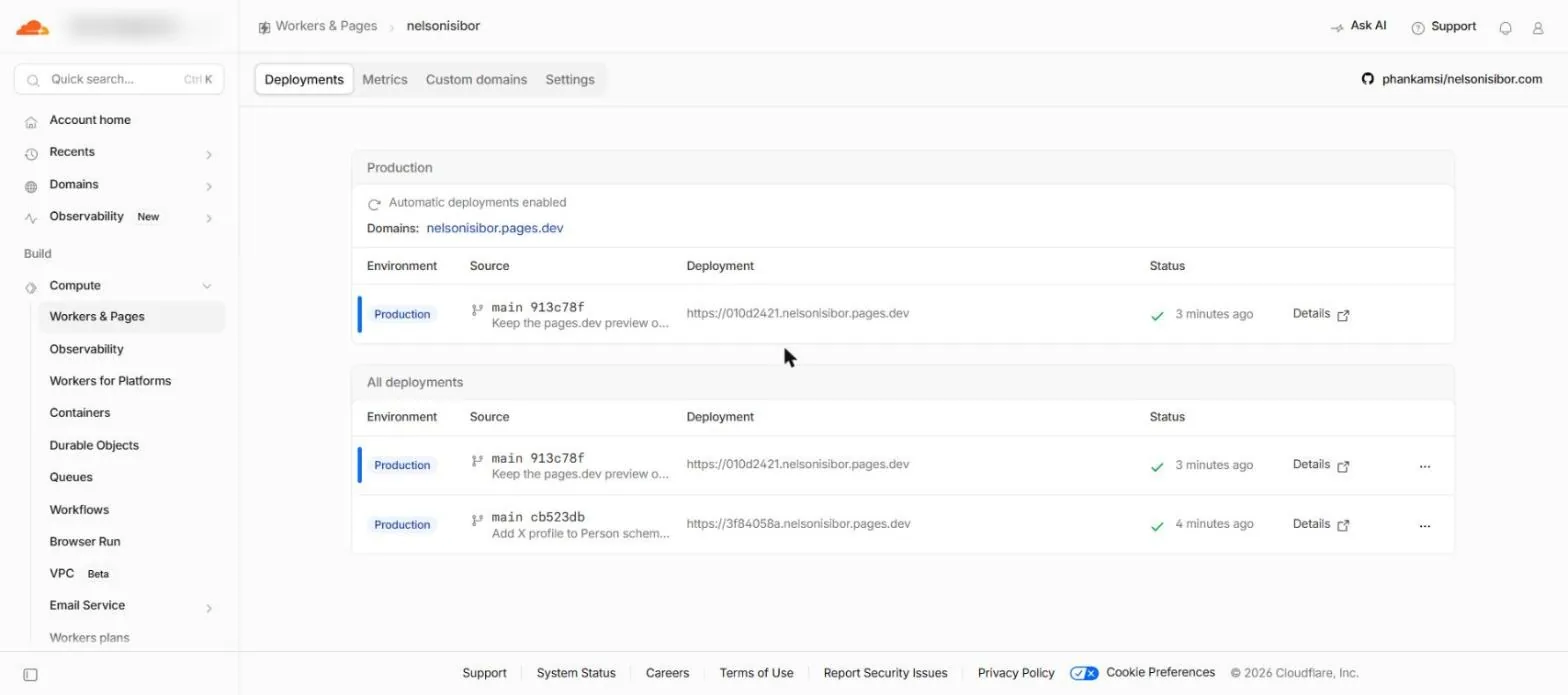
Before the real domain pointed there, the site lived on a test address at pages.dev. That address was blocked from Google with a noindex header, so the test copy could never compete with the live site.
On the test address we checked every URL from the old site and every image the new pages use. All of them had to return a 200 before we went further.
Step 4: Move the DNS without touching email
My email runs on Google Workspace. Email follows the domain’s DNS records, so this is the step where a mistake costs you mail.
I added the domain to Cloudflare, and Cloudflare imported the existing DNS records. I checked that the two email records came across exactly: the MX record pointing to Google, and the SPF record that says who can send mail for the domain.
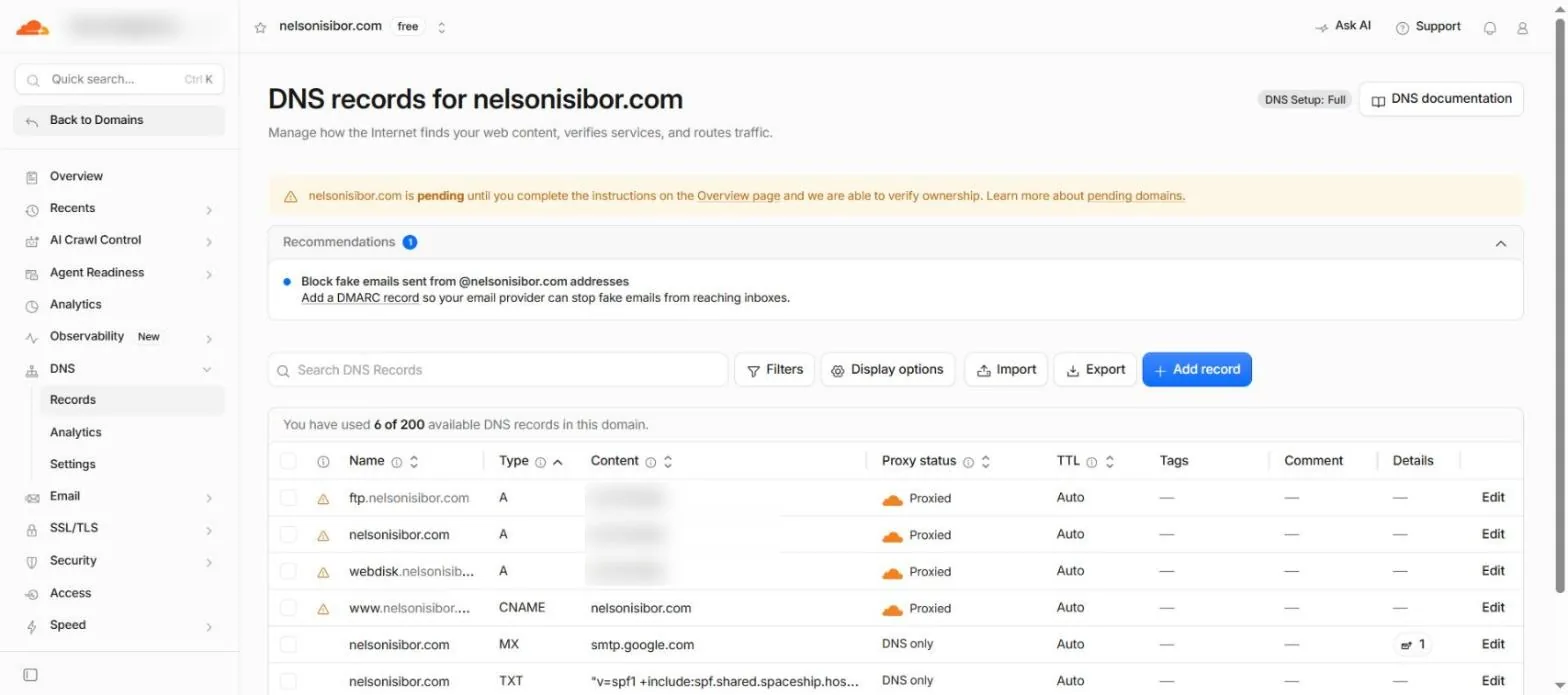
The website records were then pointed at Cloudflare Pages. Nothing changed for visitors yet, because Spaceship was still in charge of the domain.
Step 5: The CMS, which is where it got technical
On WordPress, you log in and write. On a static site, there’s no admin area unless you add one.
I used Sveltia CMS, a free editor that lives at /admin and saves your posts straight into the GitHub repository. Getting the login working was the most technical part of the whole move:
- I created a GitHub App, so the editor could get permission to write to the repository.
- Claude deployed a small Cloudflare Worker to handle the login, because a static site can’t keep a secret.
- The GitHub App’s client ID and secret went into that Worker. The secret went in as an encrypted secret, not plain text.
- Only then could I sign in with GitHub.

Then the first test post broke the build. I left the “Last updated” date empty, the editor saved it as a blank value, and the site build rejected it. The live site wasn’t affected, because Cloudflare keeps the last good version up when a build fails. But fixing it meant reading an error message and changing code.
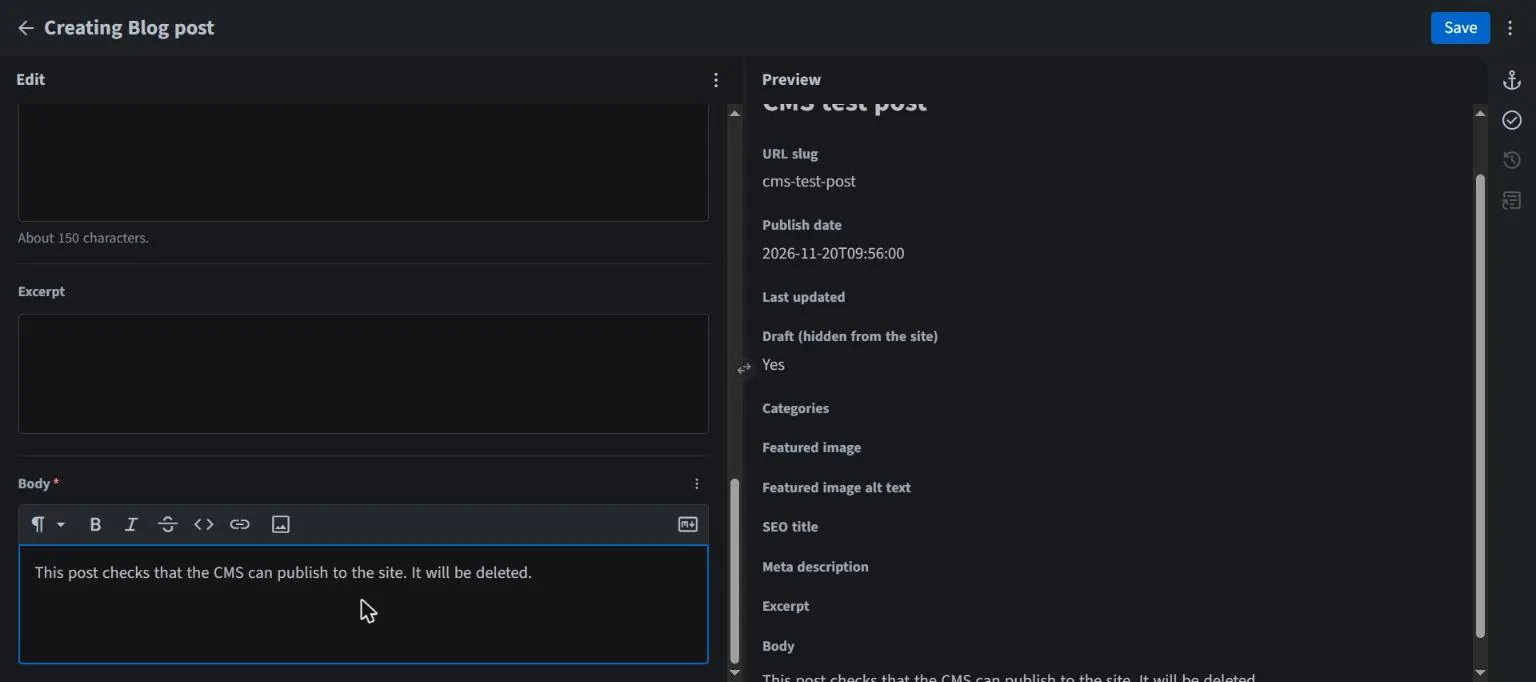
There was one more catch. The old posts are stored as HTML, and the editor works in Markdown. Saving an old post in the Markdown editor could rewrite its formatting. So the old posts got their own section in the CMS with an HTML editor, and new posts use the normal one.
None of this is hard if you do it for a living. But I want to be honest about what it is.
What this taught me about WordPress
This is a highly technical setup. I had to link my CMS to GitHub, set up OAuth with a GitHub App and a Worker, and fix a build error before I could publish a post.
A normal business owner won’t want to go through that. The only reason I’d recommend it is if you want to manage your website through an AI like Claude, publishing and updating content that way.
At the end of the day, you still need a CMS. So the people saying WordPress is dead are exaggerating. WordPress isn’t about to die any time soon. It gives you all of this out of the box, and most people should keep using it.
Step 6: Switch over
When everything had been tested, I changed the nameservers at Spaceship to the two Cloudflare gave me. Cloudflare picked up the change within minutes. Some internet providers took longer, but that didn’t matter: for that hour, some visitors saw the old site and some saw the new one, at the same URLs, with the same content.
After the switch, we:
- Tested every page and image on the live domain again: all 61 pages and all 236 images the new pages use returned a 200.
- Added a redirect from www to the main address, keeping the full path.
- Turned on Always Use HTTPS.
- Confirmed the pages that should be indexed are indexable, with the right canonical tags.
- Kept the same Google tag the old site used, so Analytics didn’t lose a day. It loads after the page has finished, so it doesn’t slow anything down.
- Resubmitted the sitemap in Google Search Console and submitted the 40 indexable URLs to Bing.
- Sent a test email in both directions.
- Added a DMARC record, which the old setup never had.
The results
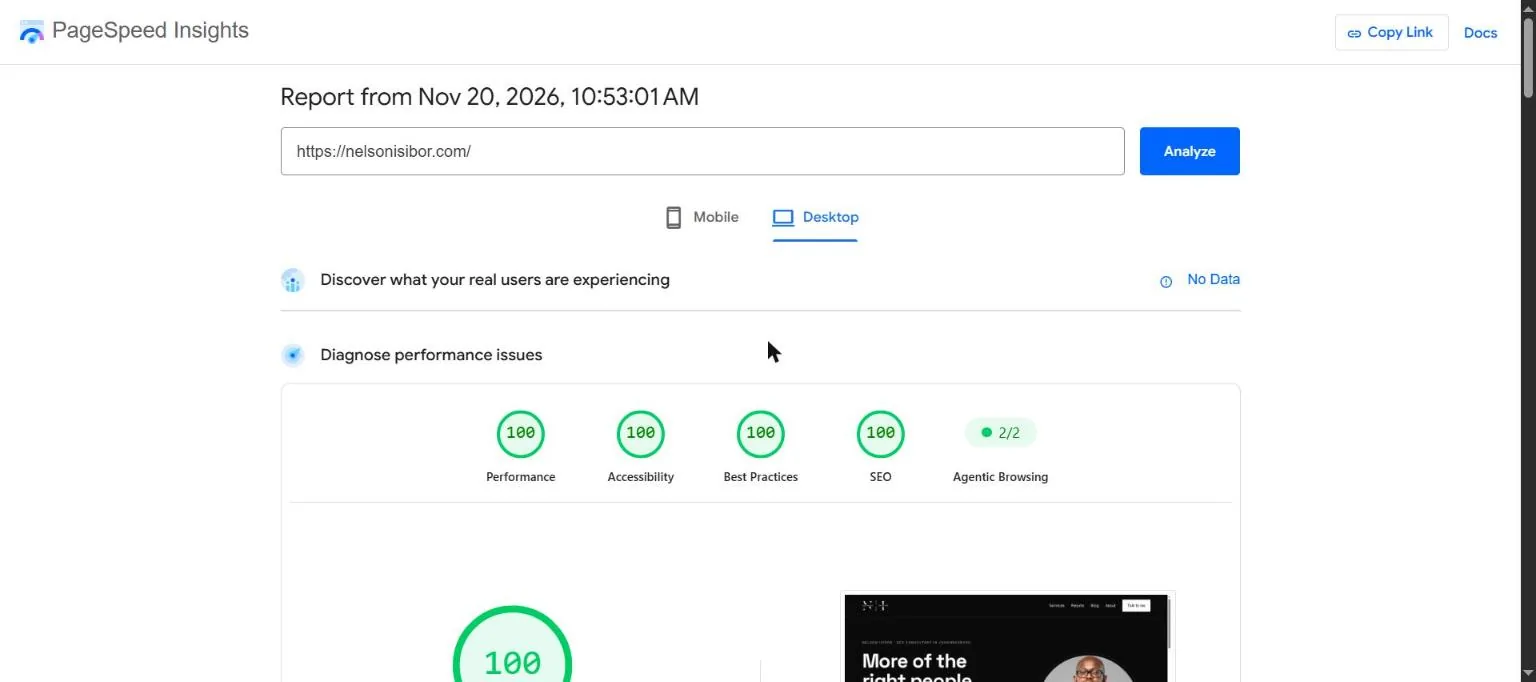
Mobile went from 66 to 99 for performance, with 100 for accessibility, best practices and SEO.
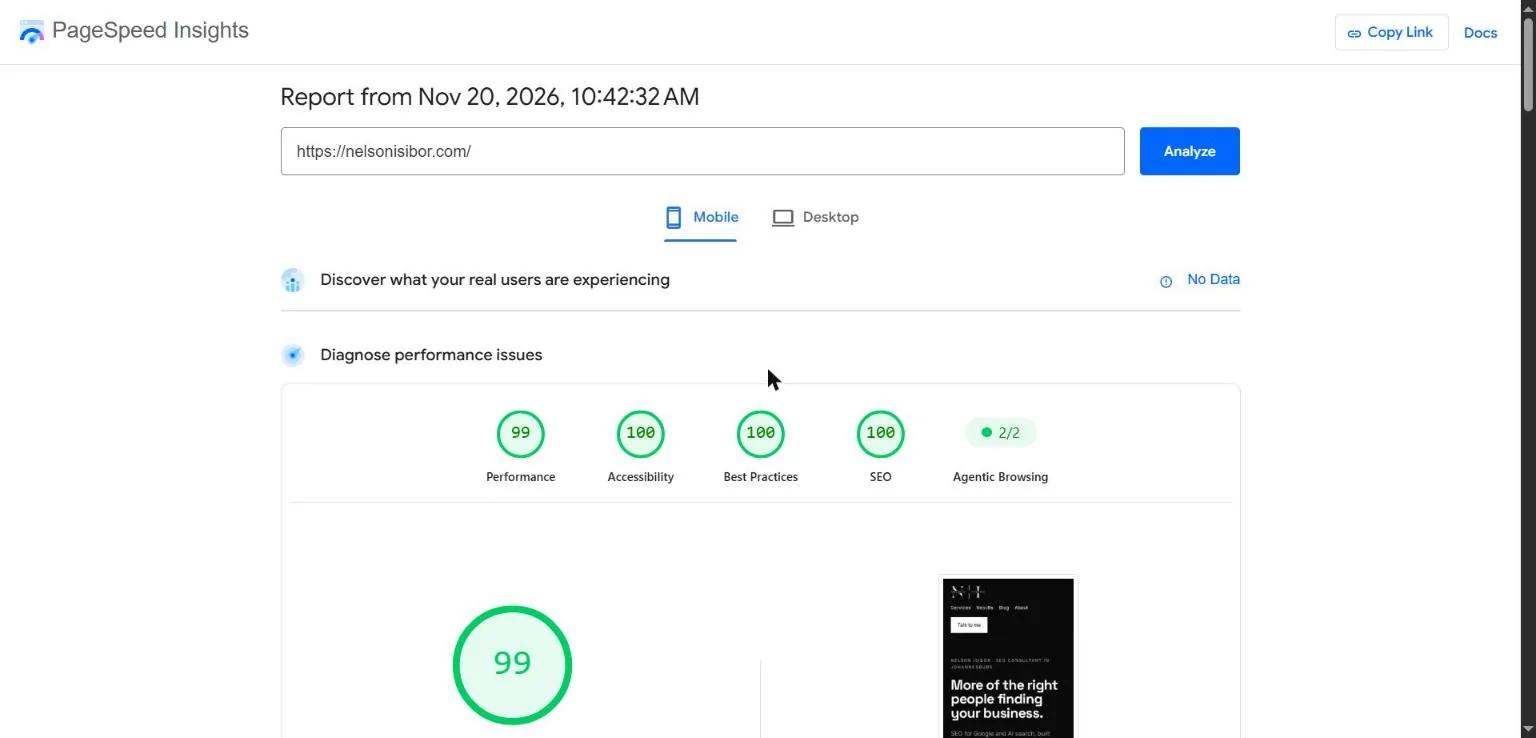
Desktop scored 100 across the board.
| PageSpeed | Before (WordPress) | After (Cloudflare) |
|---|---|---|
| Mobile performance | 66 | 99 |
| Desktop performance | 83 | 100 |
| Best practices | 73 | 100 |
| SEO | 92 | 100 |
Lab scores aren’t rankings. The real test is Search Console over the next few weeks: no new 404s, no drop in indexed pages, and clicks holding or growing. I’ll update this post with what I see.
If you’re thinking about doing the same
- Most businesses should stay on WordPress. Make it faster instead: better hosting, fewer plugins, a lighter theme, good caching.
- Move only if you have a reason WordPress can’t solve, and someone technical to set it up and fix it when it breaks.
- Keep every URL. Changing URLs during a move is how sites lose traffic.
- Protect your email first. Check your MX and SPF records before you touch the nameservers.
- Keep the old hosting for a while. I’m keeping mine for 30 days in case I need anything from it.
If you want help working out whether your site needs a move or just a cleanup, email me at nelson [@] nelsonisibor.com.