On 20 November 2026 I moved nelsonisibor.com from Spaceship’s nameservers to Cloudflare’s. The domain stayed registered at Spaceship. Only the DNS moved.
The switch itself takes two minutes. The checks before it are what keep your site and your email working, so most of this guide is about those.
If you’re doing this as part of a bigger move, I wrote up how I moved this whole site from WordPress on Spaceship to Cloudflare Pages.
Before you start
Changing nameservers hands control of every DNS record to Cloudflare: your website, your email, and anything else on the domain. If a record is missing on the Cloudflare side when you switch, whatever it pointed to stops working.
You’ll need:
- a Cloudflare account (the free plan is enough)
- access to your Spaceship account
- a list of what runs on your domain: website, email provider, subdomains, verification records
Step 1: Add your domain to Cloudflare
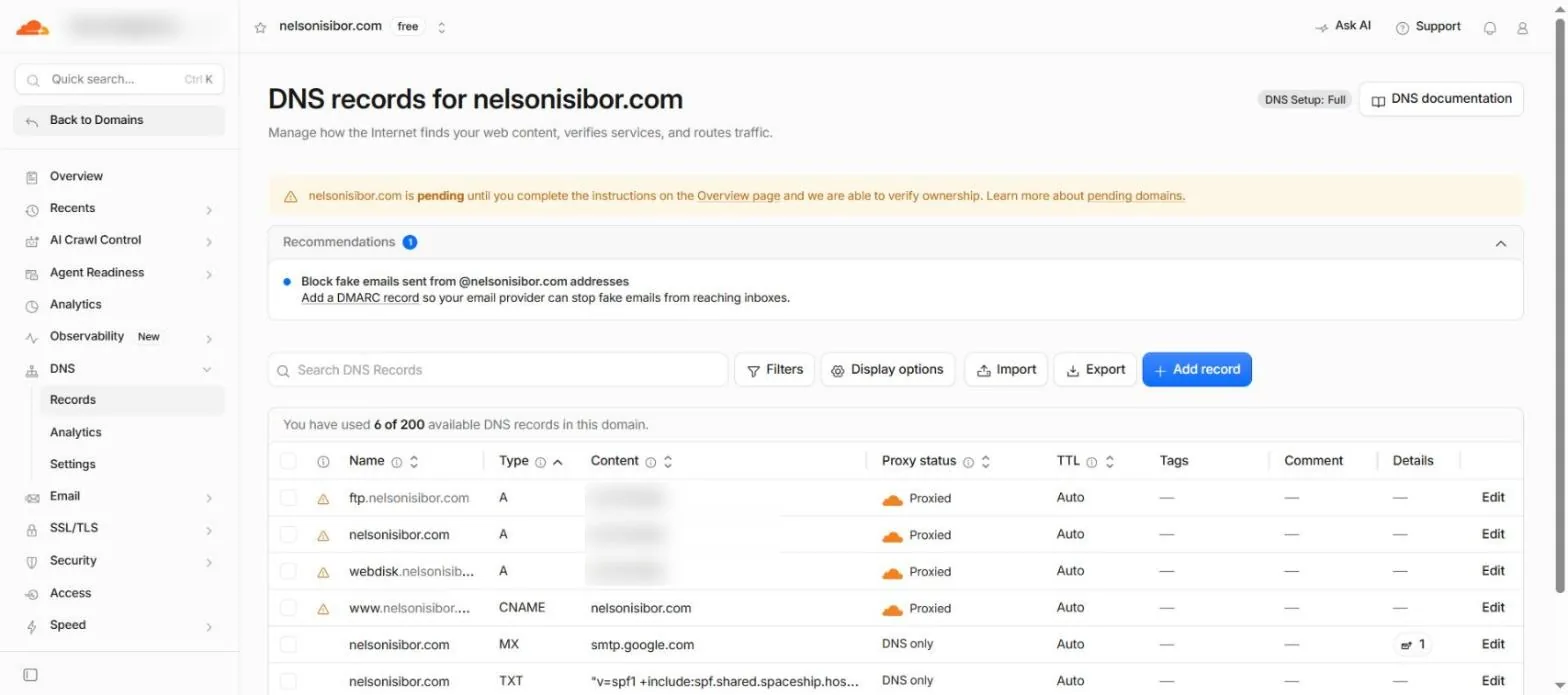
In Cloudflare, add your domain as a new site and pick the free plan. Cloudflare scans your current DNS and imports the records it finds.
Don’t trust the import blindly. Compare it with the records in Spaceship, one by one.
Step 2: Check your email records
This is the step that matters most. My email runs on Google Workspace, so I checked that two records had come across exactly:
- the MX record, pointing to
smtp.google.comwith priority 1 - the SPF record, the TXT record that starts with
v=spf1and lists who can send email for your domain
Mail records should always be set to DNS only (a grey cloud in Cloudflare). If yours use a different email provider, check its records instead. If anything is missing, add it in Cloudflare before you go further.
To see your current records in one place, run your domain through my free domain and email checker and keep the results. You’ll compare against them after the switch.
Step 3: Turn off proxying for anything that isn’t a website
Cloudflare’s proxy (the orange cloud) only handles web traffic. My import had ftp and webdisk records pointing at the old Spaceship server, set to proxied. Proxying would have broken FTP, so I set both to DNS only.
Step 4: Check DNSSEC is off at Spaceship
If DNSSEC is switched on for your domain at Spaceship, changing nameservers can make the domain stop resolving altogether, website and email included. Check it in Spaceship’s settings for the domain and turn it off before the switch. You can turn it on again through Cloudflare once the move is done.
Step 5: Change the nameservers at Spaceship
Cloudflare shows you two nameservers to use. They’re different for every account, so copy yours from the Cloudflare dashboard.
In Spaceship, open the domain’s nameserver settings, switch from Spaceship’s default nameservers to custom ones, paste in the two Cloudflare nameservers and save.
That’s the whole switch.
Step 6: Wait, and know what you’ll see
Cloudflare marked my domain as active within minutes. The rest of the internet took longer:
- Cloudflare’s own DNS (1.1.1.1) returned the new nameservers almost straight away.
- Google’s public DNS (8.8.8.8) still returned Spaceship’s nameservers for about half an hour.
- My home Wi-Fi kept loading the old site for several hours, while my office network showed the new one. My internet provider’s DNS had saved the old address and was still handing it out.
That mix is normal. While it lasts, some visitors see the old setup and some see the new one. If both point to the same content, nobody notices. If you want to see the change sooner on your own computer, set your DNS to 1.1.1.1 or flush your DNS cache.
My email kept working the whole time, because the mail records were the same on both sides.
After the switch
Once Cloudflare shows the domain as active:
- Run the domain and email checker again. The nameservers should now show Cloudflare, and your MX and SPF records should match what you saw before.
- Send a test email to your domain from another account, and reply to it, to confirm mail works both ways.
- Turn on Always Use HTTPS in Cloudflare’s SSL/TLS settings.
- Set up your www redirect if you need one. I couldn’t create redirect rules until the domain was active, so I added mine after the switch.
- Keep your old hosting for a few weeks in case you need anything from it. I’m keeping mine for 30 days.
Related guides
- How to create a subdomain on Spaceship
- How to change a subdomain A record in Spaceship
- How to redirect a subdomain in Spaceship hosting
Moving DNS on a site that already ranks? I do technical SEO and site moves, and I can check your records before you switch.